> ## Documentation Index
> Fetch the complete documentation index at: https://docs.avicenna.dev/llms.txt
> Use this file to discover all available pages before exploring further.
# Manipulate Image
> Adjust an image using filters and color operations
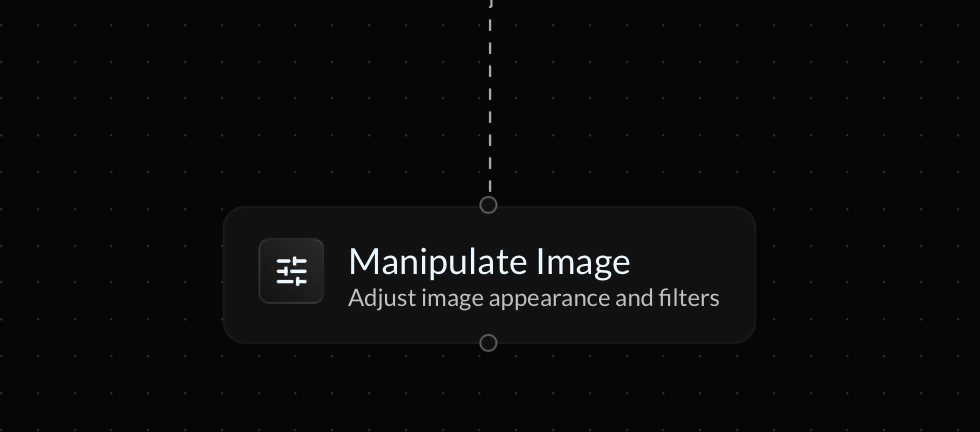
The **Manipulate Image** action allows you to apply visual filters to an image URL inside your endpoint flow. You can use this to adjust image appearance such as contrast, brightness, blur, hue, and more.
 ***
### Image Preview
The block includes a live **image preview** so you can quickly verify how your selected operation and values will affect the image before continuing your flow.
### Image URL
The **Image URL** field is the source image that will be manipulated. This can be a direct URL or a variable.
### Operation
The **operation** determines which filter is applied to the image. Below are the available options:
| **Operation** | **Description** | **Example Value** |
| ------------- | ------------------------------------------------------------------------------- | :---------------- |
| Contrast | Increases or decreases the difference between dark and light parts of the image | `120%` |
| Brightness | Makes the image lighter or darker overall | `90%` |
| Saturation | Increases or decreases color intensity | `140%` |
| Grayscale | Converts the image toward grayscale | `80%` |
| Invert | Inverts the image colors | `100%` |
| Blur | Applies a blur effect | `5px` |
| Hue Rotate | Rotates all colors around the hue wheel | `45deg` |
### Reference Variable
***
### Image Preview
The block includes a live **image preview** so you can quickly verify how your selected operation and values will affect the image before continuing your flow.
### Image URL
The **Image URL** field is the source image that will be manipulated. This can be a direct URL or a variable.
### Operation
The **operation** determines which filter is applied to the image. Below are the available options:
| **Operation** | **Description** | **Example Value** |
| ------------- | ------------------------------------------------------------------------------- | :---------------- |
| Contrast | Increases or decreases the difference between dark and light parts of the image | `120%` |
| Brightness | Makes the image lighter or darker overall | `90%` |
| Saturation | Increases or decreases color intensity | `140%` |
| Grayscale | Converts the image toward grayscale | `80%` |
| Invert | Inverts the image colors | `100%` |
| Blur | Applies a blur effect | `5px` |
| Hue Rotate | Rotates all colors around the hue wheel | `45deg` |
### Reference Variable
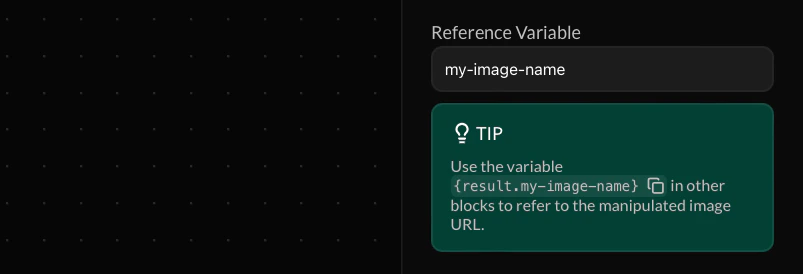 The **Reference Variable** allows you to store the manipulation result in a variable. After setting a reference variable, you can use `{result.my-image-name}` in future actions to refer to the manipulated image URL.
Make your reference variable names as descriptive and unique as possible to prevent your endpoint flow from becoming cluttered. If a future variable is assigned the same name, the value of your reference variable will be overriden.
The **Reference Variable** allows you to store the manipulation result in a variable. After setting a reference variable, you can use `{result.my-image-name}` in future actions to refer to the manipulated image URL.
Make your reference variable names as descriptive and unique as possible to prevent your endpoint flow from becoming cluttered. If a future variable is assigned the same name, the value of your reference variable will be overriden.